Customer Assist
Keep your staff responsive and your customers happy with real time alerts, messaging, and order updates.
No more waiting. No more guessing. No more missed tables.
Customer Assist
What Customer Assist Is
Customer Assist is a communication tool that helps your business stay connected with staff and customers during service.
Get notified or send updates
Instantly see when a customer is waiting and notify both staff and customers in real time.
Keep everyone informed
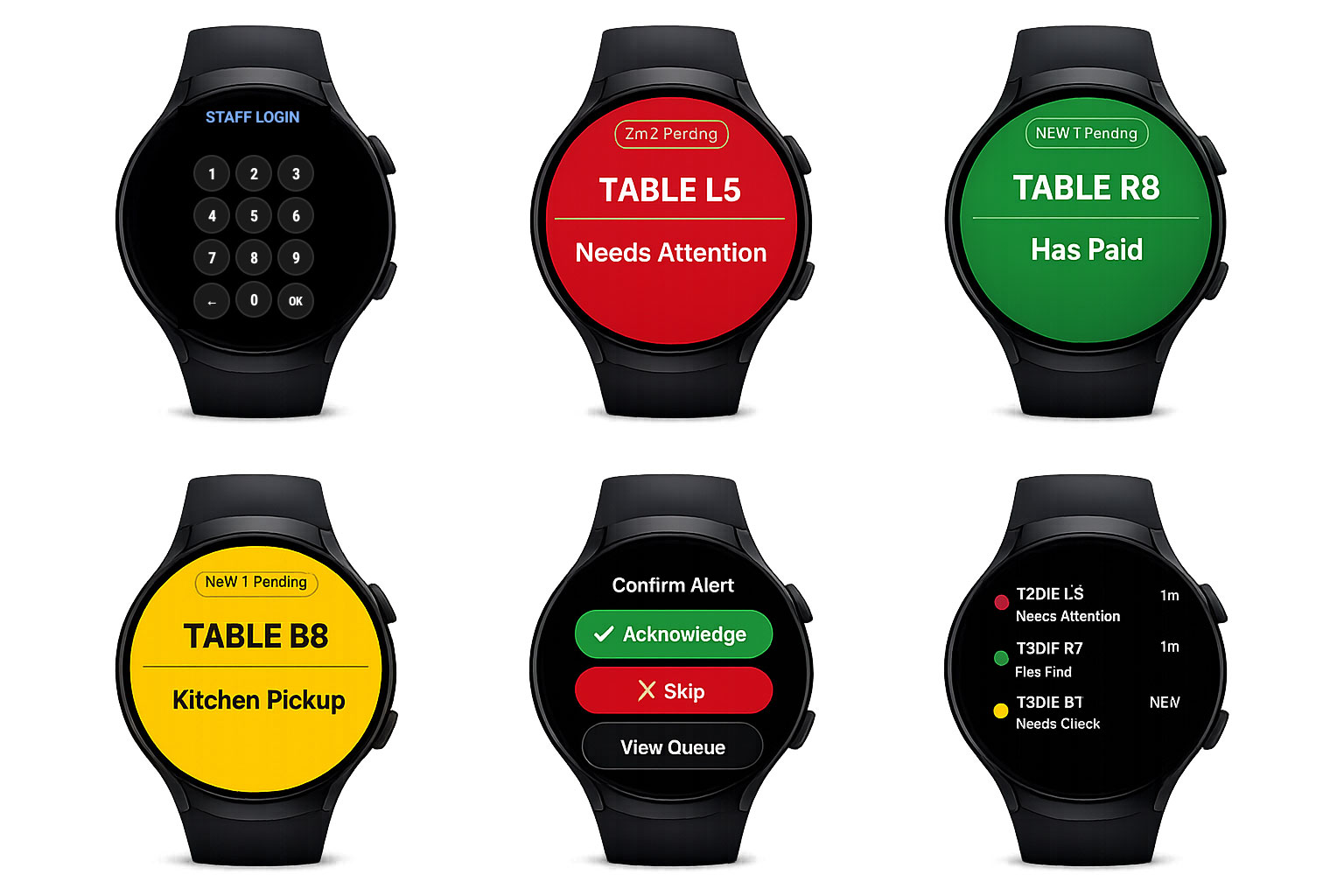
Staff can receive watch alerts and customers can receive text messages when an order is ready for pickup.
How It Works
Using Avalux Customer Assist watches and table tap cards, your team and customers stay connected in real time.
Choose what you want to view
First choose a table or watch, or look for customers that are waiting.
Send an alert or update order status
Once you find the right table, watch, or customer, send an alert or update the order status.
Staff and customers get notified
Your staff gets visually notified and receives vibration alerts when needed, including when an order is ready on an Avalux Customer Assist enabled watch.
Two Main Ways To Use Customer Assist
Staff initiated alerts
- Send a message to a staff member directly from the POS.
- Choose a watch when you need to notify a specific employee.
- Choose an order to automatically notify the server assigned to that guest or table.
- Use this for reminders, follow ups, immediate requests, and pickup notifications.
- The kitchen can instantly notify staff when food is ready for pickup without runners or constantly checking order status.
Customer initiated requests
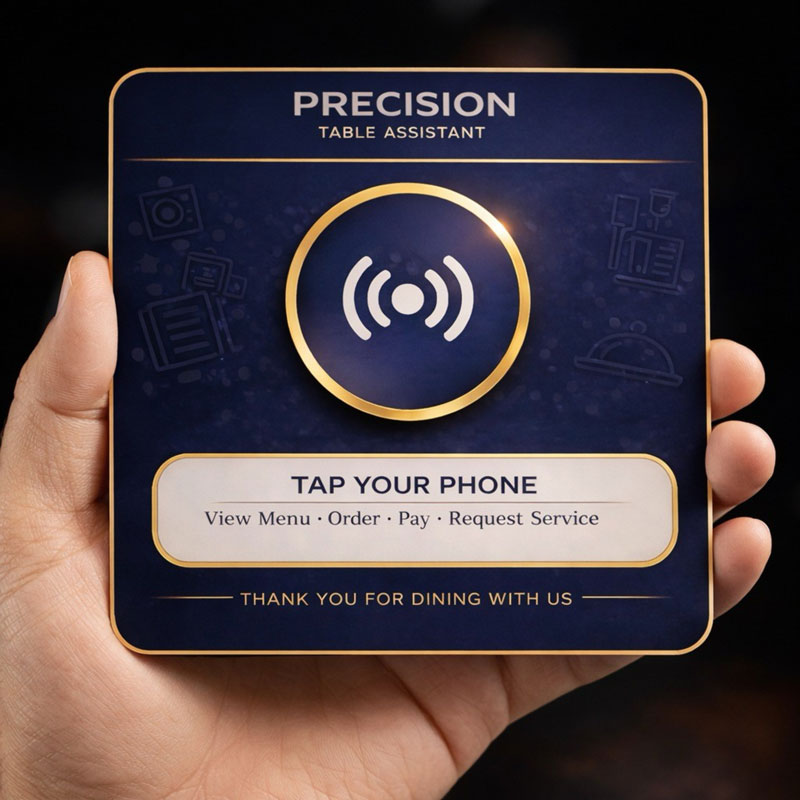
- The customer taps the table PVC sticker with their phone.
- The request is sent to the appropriate staff member.
- Customers can call a server, reorder refills, ask for takeout boxes, or request and view their bill.
- The server can respond faster without the guest waiting to flag someone down.
- This helps improve service speed and overall guest satisfaction.
Message Types
Use message styling that helps staff understand the importance of an update at a glance.
Success
Use for positive updates or completed actions.
- Order ready
- Request completed
- Customer has paid
Warning
Use when attention is needed soon, but it is not yet critical.
- Needs follow up
- Pickup waiting
- Customer check in
Urgent
Use when immediate action is required.
- Customer needs help now
- Escalated service request
- Priority staff alert
Example Flow
First choose a table, a watch, or look for customers that are waiting. Then send an alert or update the order status. Your staff gets visually notified and receives vibration alerts on the Avalux Customer Assist enabled watch. When a takeout order is marked as ready, your customer is notified by text that the order is ready for pickup.
Frequently Asked Questions
Who can receive alerts?
Alerts can be tied to a specific watch, a staff member, or an order based workflow.
How do customers contact their server?
Customers tap the table PVC sticker with their phone, which starts a service request.
When does a customer get a text?
A common example is when an order is marked ready, which triggers a text notification.
Why use message types?
Success, warning, and urgent styling make the list easier to scan and help staff react faster.
Order Devices
Call Avalux at 1-855-673-3700 to order preconfigured Google Pixel Watches with Customer Assist and tap to call server table stickers.